
Chat
Chat
The AIChat Playbook: Step‑by‑step instructions for setup, RAG, component rendering, and streaming UX. Opinionated defaults. Production‑ready outcomes.
steps Guide for adding the code component in Framer
Short guide to add, configure, and use the AIChat code component in Framer, including RAG.
Quick start
Add the code Component: Copy Framer code component link and past it anywhere on canvas
Set basics:
API Key: Your OpenAI‑compatible key
Model: e.g. gpt-4o-mini or any OpenAI‑compatible model
(Optional) Base URL if using a proxy or OpenAI‑compatible api route like gemini and others
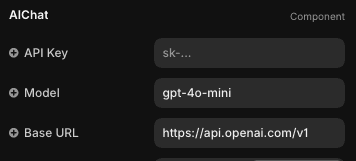
Tune UX: Colors, fonts, border radius, typing indicator and more
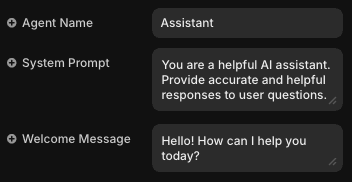
Identity & Behaviour: Give the AIChat name, system prompt and welcome message
Using RAG
RAG (Retrieval‑Augmented Generation) lets the model “look up” facts before it answers. It pulls the most relevant chunks from your docs, adds them to the prompt, then generates. Fewer hallucinations. Grounded answers. Easy to update—just change the source.
Step (1) Perpare: Compile all your knowledge base into one long .txt or.md file
Step (2) Generate embeddings
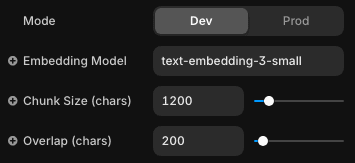
Dev Mode: In properties panel switch to dev. This when hide chat and show dev mode in componet
Configure: now setup chunking properties in the panel
Preview Component: After switching to dev mode preview component(make sure its inserted on page for better experience)
Generate: upload your knowledge base file or pase contents of it in the text area and click generate
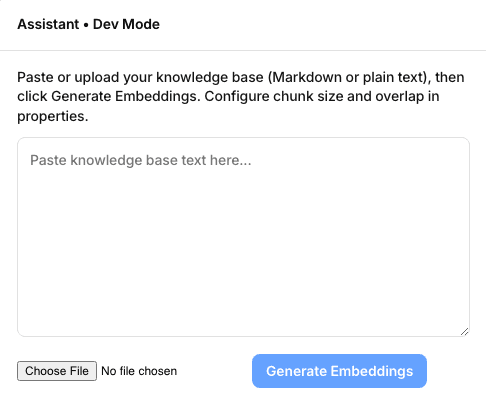
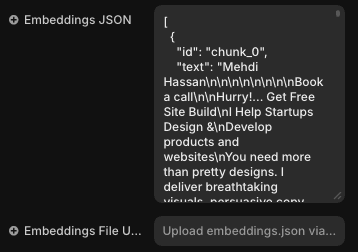
Step (3) Copy: copy or download your embeddings json file (recommended: do both) and get out of preview and back to component's properties panel
Step (4) Prod Mode: switch back to production mode and past your embeddings json or host it some where(direct link) and past JSON URL
Step (5) Test: preview component and check if it works or not
Note:
Retrieval happens client‑side. If no relevant matches, the model answers without RAG.
For large files, prefer a hosted URL over pasting JSON.
UI component rendering (Static & Dynamic)
The assistant can intelligently render predefined components static and dynamic (created in framer or code) based on user's needs by emitting tags in its message give your chat uniqe and ux friendly spin:
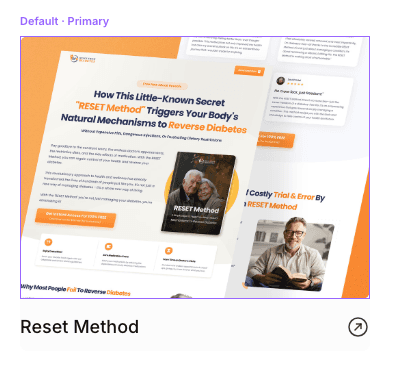
Step (1) Design a Component
Design component in framer with all interactions and animation you want
Without variable: if you want a static without dynamic data of props
Or with varibles if you want a dynamic component(ai will give correct props and render it correclty in chat).. make sure to use lowercase with _ as seprator for variable names. This will make it easy to pass data dynamically
Step (2) Copy Import
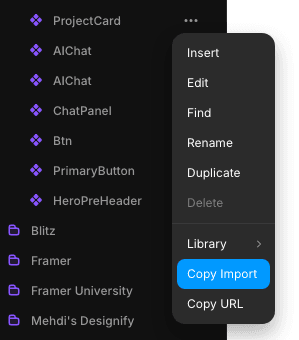
Find Component: in Framer go to the Assets panel on left and find your created component
Open Context Menu: once you find your component right click on it and scroll down and click copy import
Step (3) Paste Import
Edit AI Chat: Right click on AIChat code component and click edit code
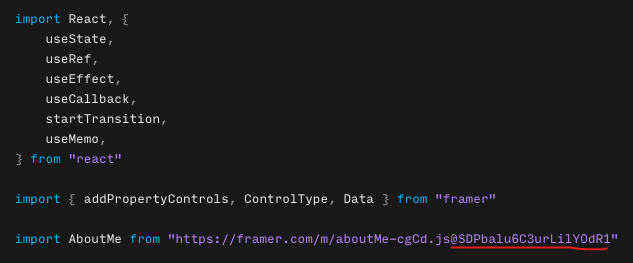
Paste: at top after all imports paste copied component import
Remove version link: remove @ and rest of text until " just like in the image on the right. This is component version… this important becuase this will tell framer to always get latest version of that component
Step (4) Register Component
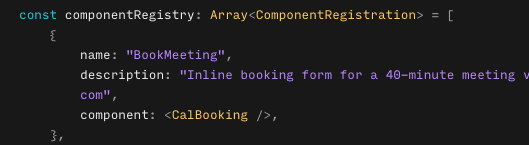
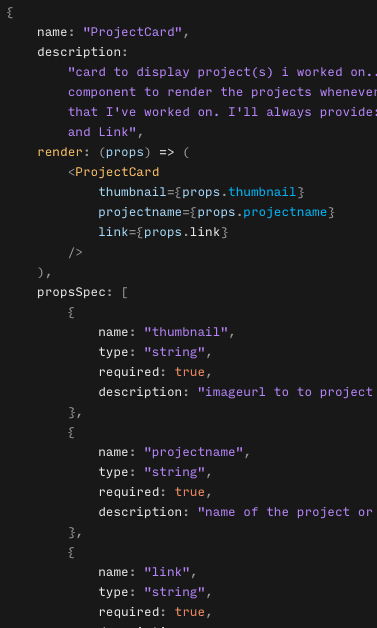
Scroll to componentRegistry: and register you components.. just like example images on right
Identity : give you component good name and detailed description so ai can correctly render relevent components
For Static components: use componets key to register your component
For Dynamic: use render key to correctly register with.. you need to create propsSpec as well just like the image on right.
make sure to correctly define props.. and use the same lower case name as component variables and state if its required or not, type and use description to tell LLM what kind data (specifically) it needs
Sepration: in componentRegistry amek sure to seprate each component by , like examples
Save: Make sure you followed all the steps correctly and save it
Test & improve: preview code component on a page and test if compoents are render corectly and when needed.. if note fix and impove description
Note: you can also write or as ai to write code for a component inside AiChat component
Test & play
There are even more features like suggestion pills, persist Messages with local storage and more so check the properties panel and play around
Security & limits
This is a play and test component. I recommend you to not use(until framer fix these securities issues) it production because its clients side code which case leak of sensitive data and api keys
API keys are used client-side in Framer previews/published sites (plz framer bring server code components/route or at very least envoriment variables)
Very large embeddings JSON may impact load time; split docs if needed